Run a workflow from an associated object
Each Portant workflow is tied to one HubSpot object type. By default the workflow only appears on records of that type, so a workflow sourced from Companies shows up on company records and nowhere else. That is the most common reason a workflow seems to be "missing" from the Portant card on a record.
Run from Associated Objects (Advanced) lifts that restriction for one workflow. With it switched on, the workflow is also offered on records that are associated with its source object, so a company-sourced NDA can be started from the deal or the contact your rep already has open.
When to use it
Turn it on when the person running the document is not working in the same object the workflow is built on. For example:
- A mutual NDA or MSA sourced from Companies, run by a rep from the deal they are working.
- An onboarding pack sourced from a custom object, run from the company it belongs to.
- A contract sourced from Companies, run from a contact record during a call.
Leave it off when a workflow should only ever be run from its own object type. Off is the safer default: it keeps the actions list on each record short and makes it obvious which record a document was built from.
Turn it on
- Open the workflow in Portant and stay on the Workflow tab.
- In the right-hand panel, open Source Settings.
- Scroll to Run from Associated Objects (Advanced) at the bottom of the panel.
- Switch on Allow this workflow to be ran from associated objects in HubSpot.
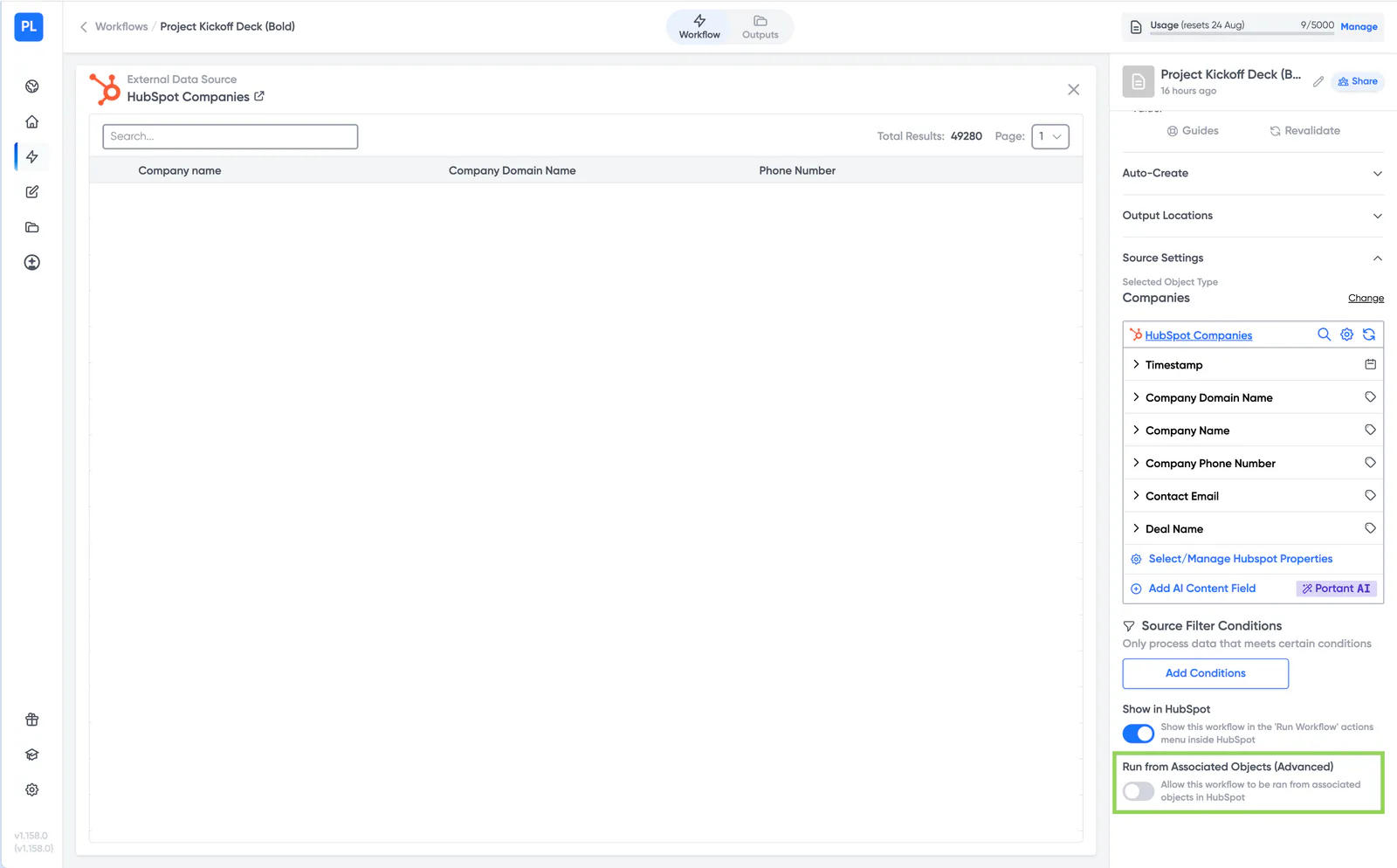
The setting is saved on the workflow and applies to everyone who runs it. It is off by default, and it is per workflow, so turning it on for one workflow does not change any of your others.
Just above it is Show in HubSpot, which controls whether the workflow appears in HubSpot's Run Workflow actions menu at all. If a workflow is missing from HubSpot everywhere, not just on one object type, check that toggle first.
When several records are associated
A record is often associated with more than one record of the source object type, for example a company with five open deals. What happens then depends on how the workflow is run, and this is the part that catches people out.
| How you run it | What happens |
|---|---|
| Manually from the record (Portant app card) | A checkbox list of the associated records appears, and you tick the ones you want. Portant generates one document per record you select. |
| Automatically via a Portant action in a HubSpot workflow | Every associated record runs. Five associated deals means five documents, with nothing to confirm first. |
So before you put this workflow behind a HubSpot automation, check how many records are realistically associated at the point the automation fires. If you only ever want one document, either keep the workflow on manual runs or narrow the trigger in HubSpot so it fires when a single association exists.
Good to know
- Your template does not need changing. The source object stays the same, so your tags still come from the source object and its associated records exactly as before.
- An association has to exist. The workflow is only offered where the record is actually associated with the source object type. If a deal has no company associated with it, a company-sourced workflow will not appear on that deal.
- It works with custom objects as well as deals, contacts, companies and tickets.
Related guides
- Create a document in HubSpot for running a workflow from a record step by step.
- Manage and select HubSpot properties for pulling fields from associated records into your template.
- Add a Portant action to a HubSpot workflow for running this automatically from a HubSpot trigger.
- Generate documents from any custom object if your workflow is built on a custom object.