Reconnect Microsoft
Portant connects to Microsoft to read templates and save outputs in OneDrive or SharePoint. When that connection drops, workflows stop part way through rather than failing outright, so the first sign is often a customer telling you a document never arrived.
Symptoms
- Workflows that stop executing and show as Drafts.
- A HubSpot-triggered workflow stuck at the Portant step.
- Generated PDFs no longer attaching to the HubSpot record.
- A team member's Microsoft account that keeps unlinking.
- Errors selecting a file from SharePoint or OneDrive.
Reconnect
- Go to Portant Settings → Integrations.
- Find Microsoft under Individual Permissions and click Manage.
- Reconnect and approve the prompts.
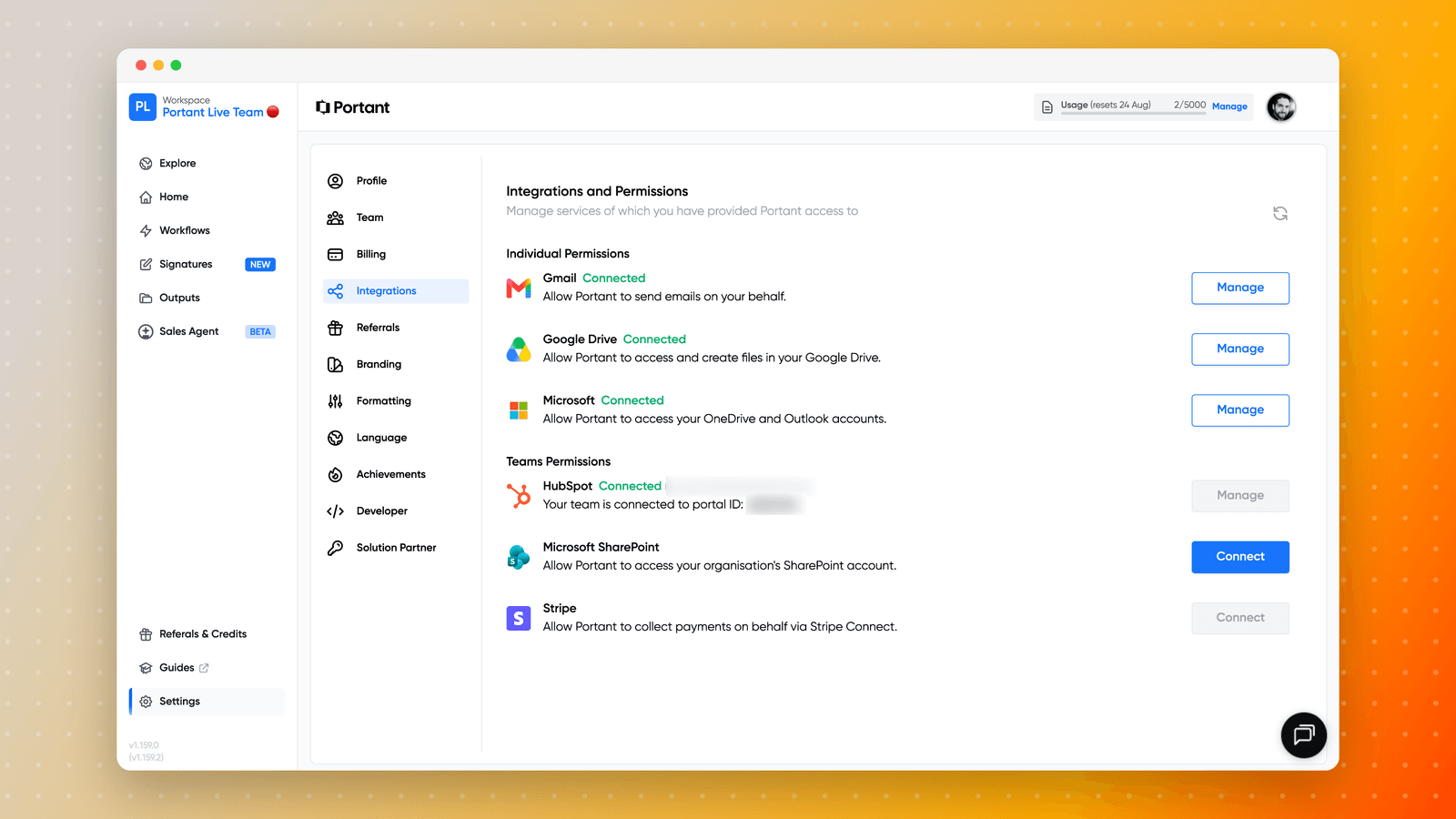
Microsoft should show as Connected when you are done. Then re-run one affected item to confirm.
Microsoft SharePoint is a separate connection, listed under Teams Permissions. If you store templates or outputs in a SharePoint library rather than a personal OneDrive, check that one too: Microsoft can show as Connected while SharePoint is not.
If the connection keeps dropping
Some tenants drop the Microsoft connection far more often than others, in some cases every week or two. If you are reconnecting repeatedly:
- Check whether a conditional access or token lifetime policy in your tenant is expiring the grant early. Your Microsoft administrator can confirm this.
- Make sure consent was granted at organisation level rather than per user. See Microsoft permissions issue for the admin consent link, and Approving Portant in Microsoft 365 (Entra ID) if your admin prefers to assign access to specific users or groups.
- Tell us how often it happens and which tenant you are on. Repeated drops are worth investigating rather than living with.
Portant does not currently notify you when a Microsoft connection drops. Until it does, the reliable check is the Permissions page, and the practical habit is to look there first whenever a Microsoft-based workflow behaves oddly.