Document records in HubSpot
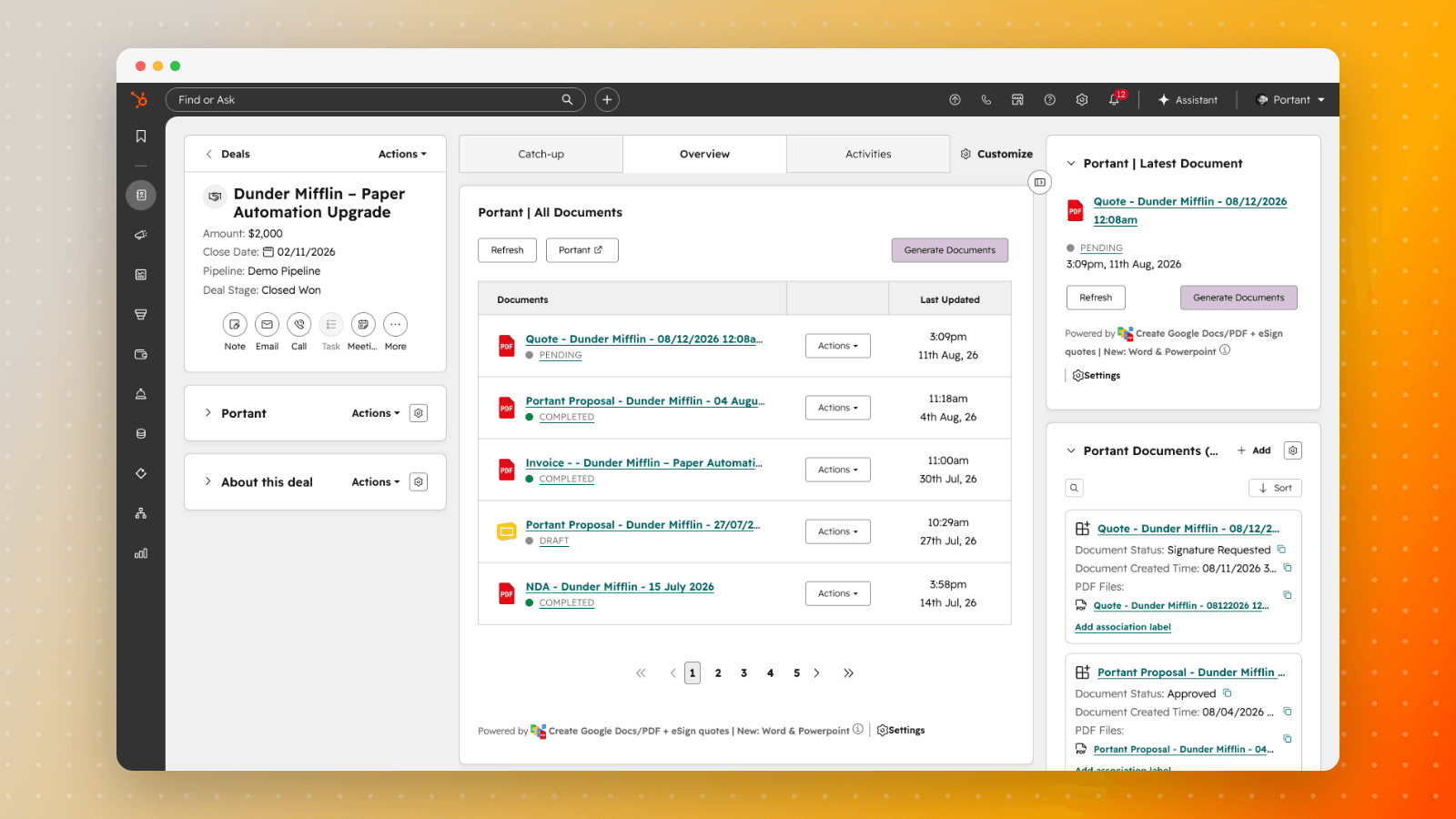
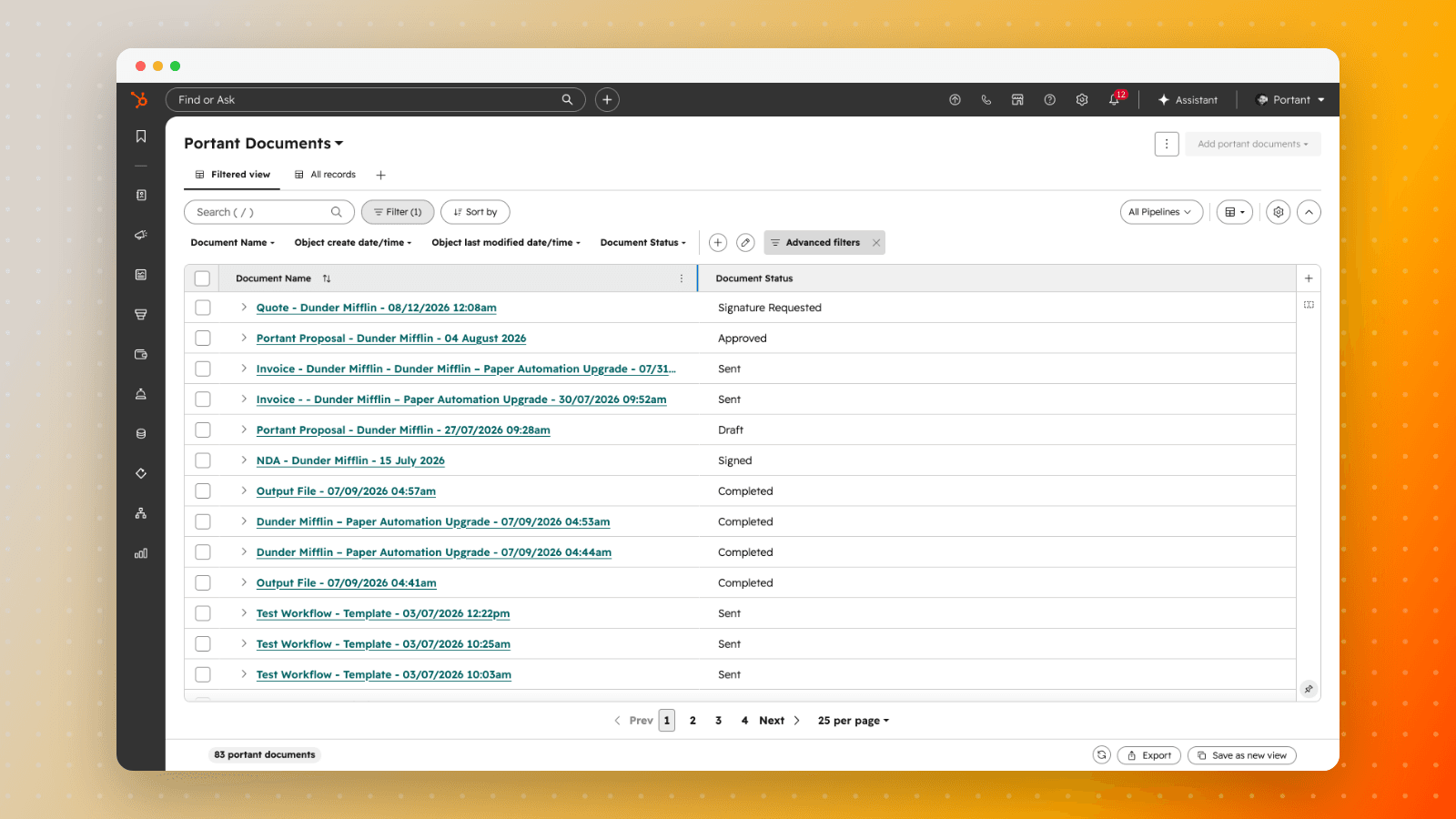
Portant writes every document it generates into HubSpot as its own record on a Document object (a HubSpot app object contributed by the Portant app), associated with the deal, contact, company, ticket or custom object the workflow ran from.
The point isn't that you can report on documents. It's that your documents are your business process. A document is a quote, a contract, an invoice, a proposal or a statement of work, so once each one is a record with a status and a date, questions you previously couldn't answer become ordinary HubSpot reports: how many contracts were signed last month, how many quotes went out per rep, which deals have had three quotes and still haven't signed, which signature requests were never even opened.
Before this, the Portant properties on a deal or contact only held the most recent document, overwritten on every run. A deal with a quote, a revised quote and a signed contract showed one set of values. Document records keep all three.
In this guide:
- Name your workflows after the document type
- What you can measure
- Automations worth running
- Document-side or deal-side automation
- Contract renewals and expiry
- Reference: what's on each record
- When records are created and updated
- Requirements and limits
- If records aren't appearing
Name your workflows after the document type
Do this first, because everything below depends on it.
Each Document record stores the workflow that generated it. That workflow name is how you tell a quote from a contract in a report, so it's effectively your document type. If your workflows are called "Workflow 1" and "Copy of proposal test", your reports will be useless no matter how good your data is.
Name workflows after the document they produce: Quote, Order Form, MSA, NDA, Statement of Work, Invoice, Renewal. Then "how many contracts did we sign in July" is a filter on one field.
If you generate several document types from one workflow, split it, or make the output name carry the type so you can group on that instead.
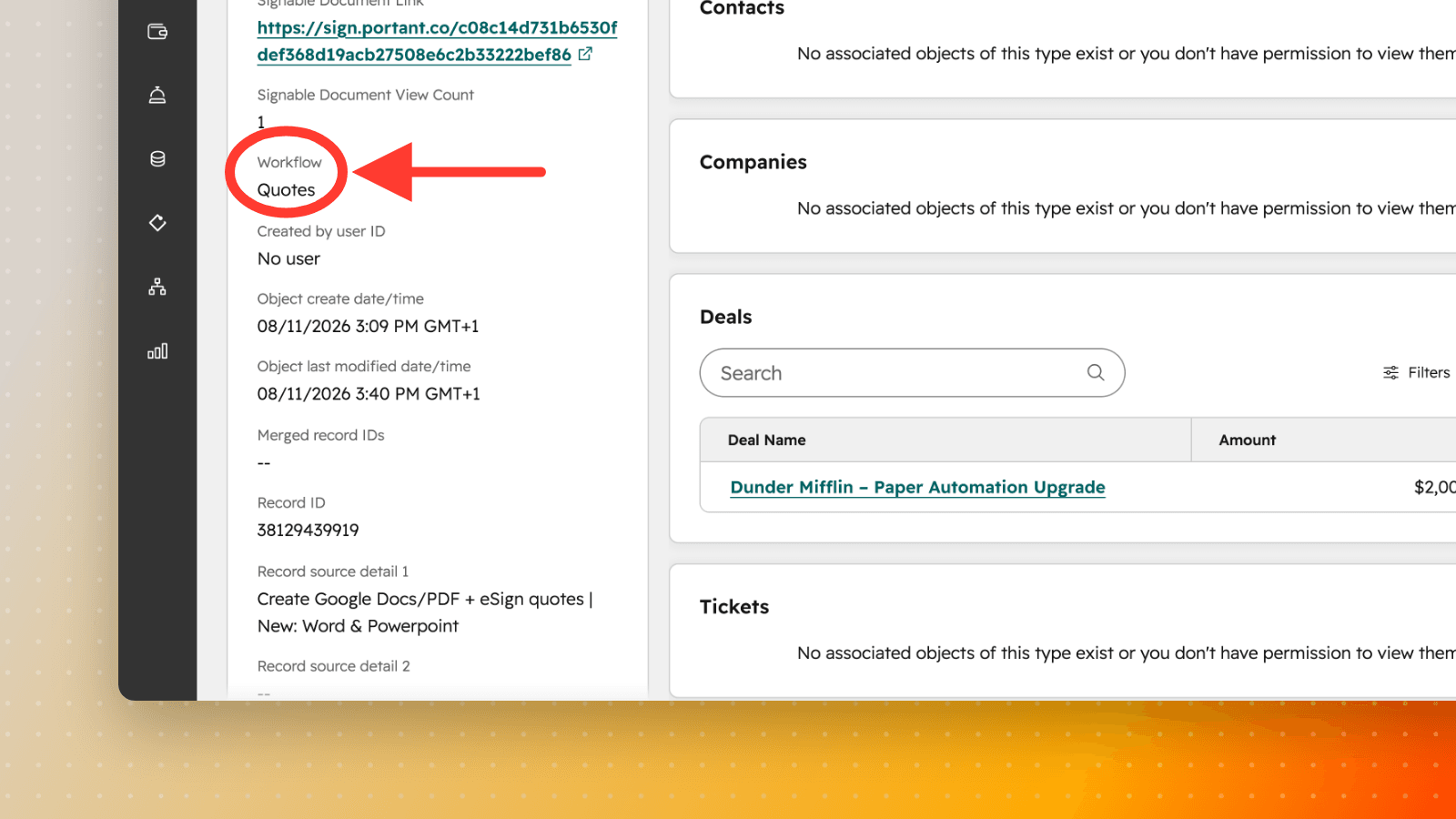
The workflow name lands on the record as Workflow, which is the field you group by:
What you can measure
Volume by document type
Group Document records by workflow and by created date to see what your business actually produced: quotes out per month, contracts signed per quarter, invoices raised per week. Add the record owner to get the same picture per rep, which turns "is the team sending proposals" into a number rather than an impression.
Quote to signature conversion
Two counts side by side, quotes created against contracts signed in the same period, give you a documents-based close rate that is independent of how carefully anyone maintains deal stages. Track it per rep or per template to find which quotes actually convert.
How long signing really takes
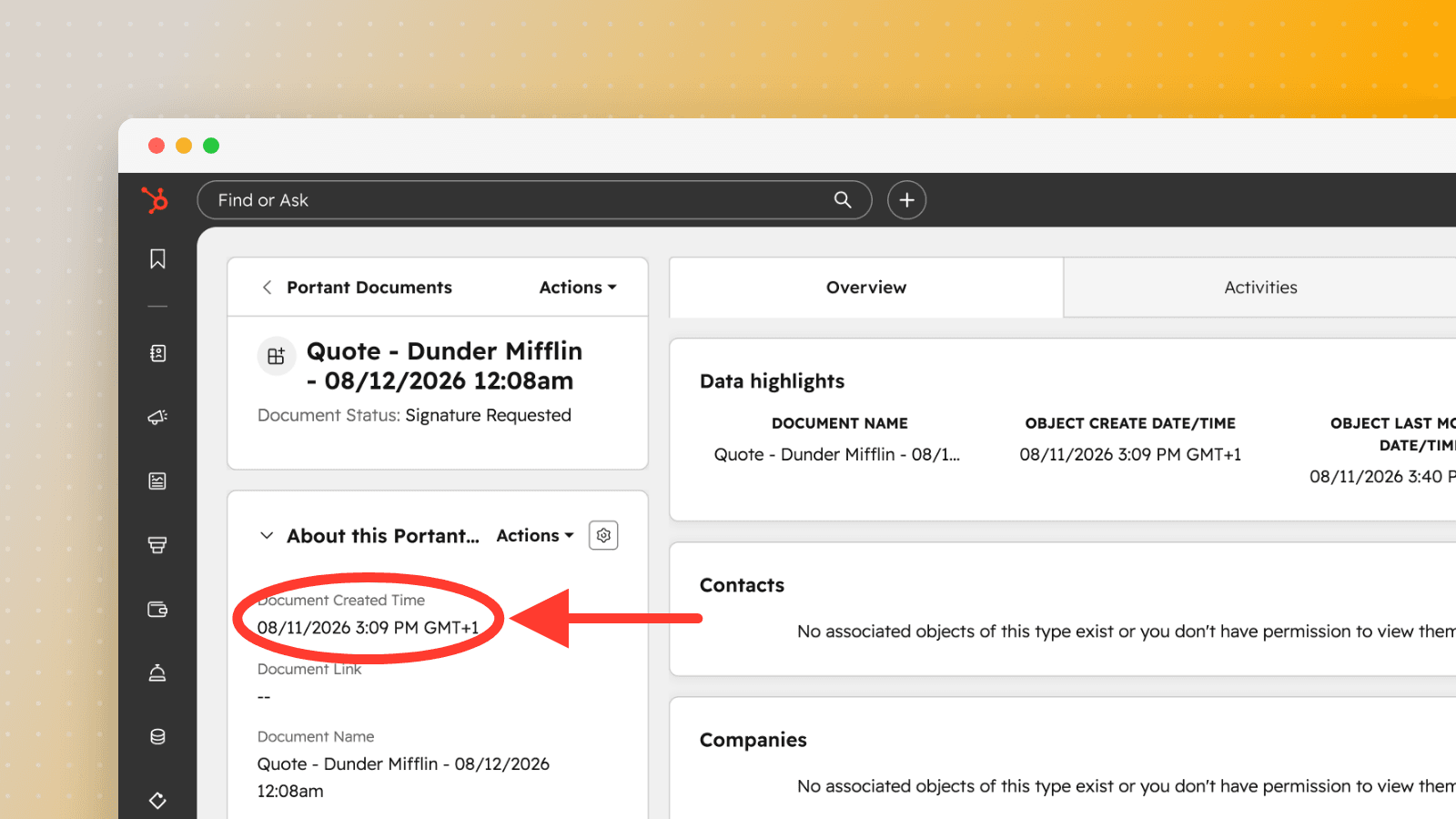
Each record carries when the document was created and moves to Signed when the last signer completes. The gap between those is your true signature cycle time, and it's usually where deals quietly sit. Compare it across document types: an NDA that takes eleven days is a different problem from an MSA that takes eleven days.
Deals with several quotes and nothing signed
This is the report most teams don't have. Look for source records with multiple Document records from your quote workflow and no signed contract. Each one is a deal being renegotiated, discounted or stalled, and the count of quotes is a decent proxy for how much friction it's carrying. It's a discount-review queue and a coaching signal at once.
Deals whose stage doesn't match the paperwork
Because documents and deals are now separate records, you can cross-check one against the other:
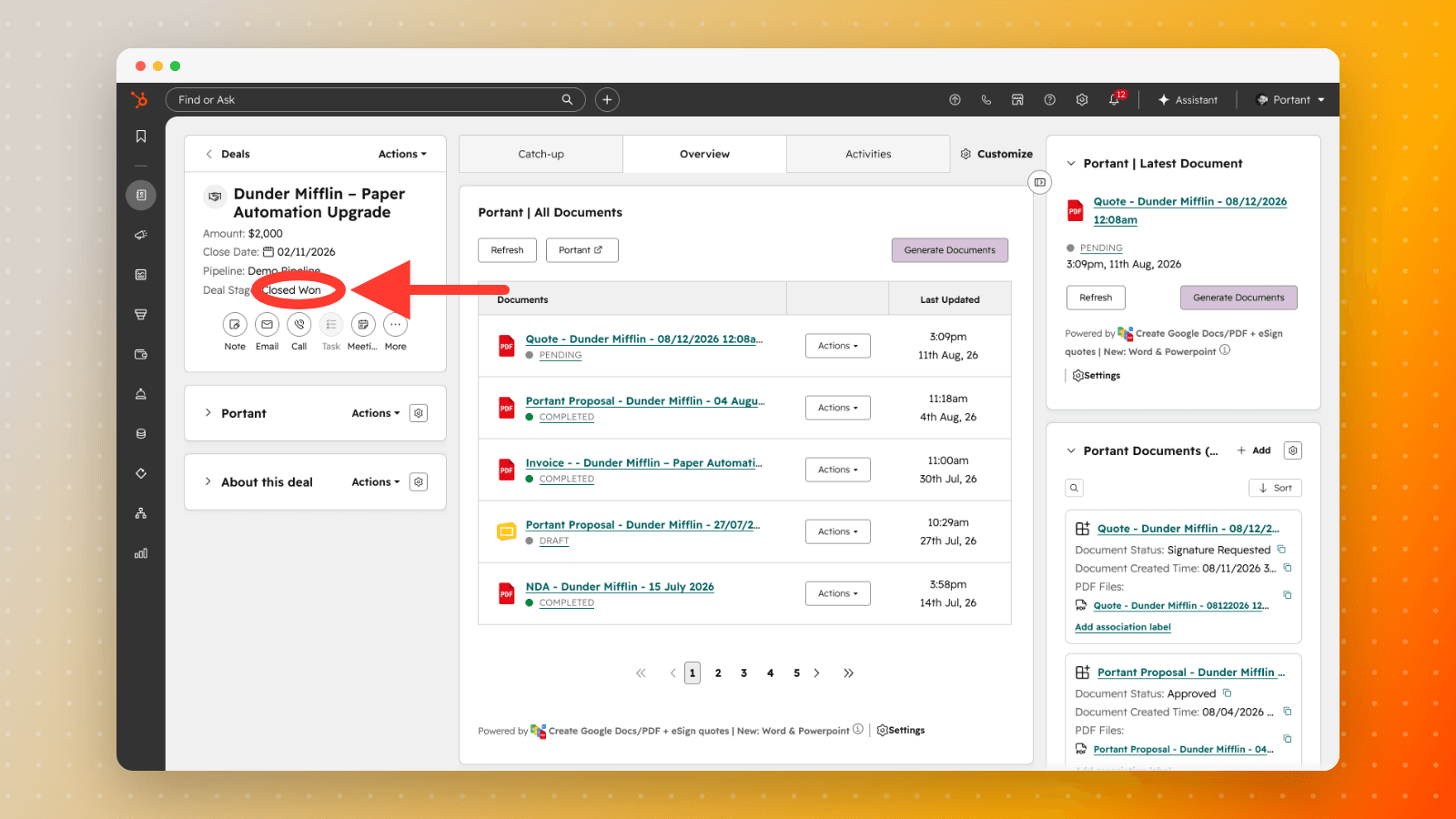
- Deals marked closed won with no signed contract, which is a revenue recognition and audit gap.
- Deals sitting at proposal or negotiation stage where no proposal was ever generated, which is pipeline that doesn't exist yet.
Both are invisible if the only evidence of a document is a property that gets overwritten. Here the deal is marked Closed Won while its most recent quote is still sitting at Pending:
Whether the signer has even opened it
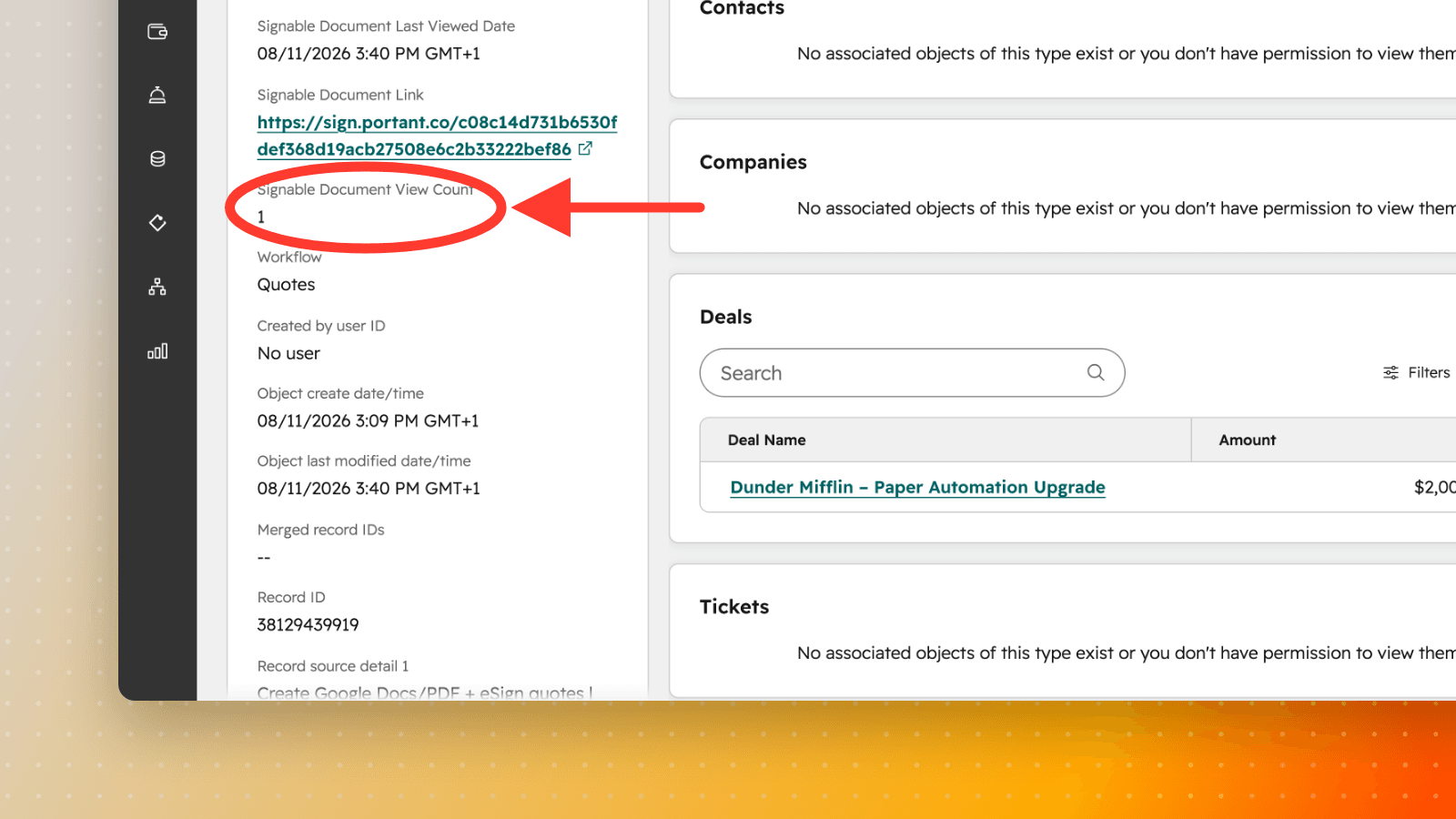
Every record tracks how many times the signature request was opened and when it was last viewed. That splits one vague problem into two with different fixes:
- Sent, never opened. Wrong address, or it went to spam. Somebody needs to resend or call, and no amount of chasing the same inbox will help.
- Opened five times, still not signed. They've read it and something is stopping them. That's an objection, and it's a phone call today.
Which templates are actually used
Volume grouped by workflow tells you which templates earn their keep and which have been dead for a year. Retire the dead ones; the shortlist your team scrolls past gets shorter.
Automations worth running
Document records can be enrolled in HubSpot workflows and branched on like any other record, so document activity can drive real process rather than just reporting. Plays worth setting up:
- Contract signed, so start delivery. Status becomes Signed, so notify the owner, move the deal stage, create the onboarding tasks and hand off to the delivery team. The signed PDF is already on the record.
- A generation failed. Status becomes Error, so alert whoever owns document ops. Without this, a failure is silent: the rep assumes the customer has the quote and the customer is waiting for it.
- Sent but not opened after two days. Status is Signature Requested and the view count is still zero, so create a call task. This is the highest-yield automation on the list because it catches deliverability problems that otherwise read as customer disinterest.
- Read repeatedly and still unsigned. View count above three with no signature, so task the rep to call and name the objection.
- Chase the outstanding signature. Status has been Signature Requested or Partially Signed for longer than your norm, so escalate on a schedule rather than when someone remembers.
- Notify on a high-value document going out. See the next section, because the value lives on the deal rather than the document.
- Renewal approaching. See contract renewals below.
Document-side or deal-side automation
Pick the lane by which fields you need.
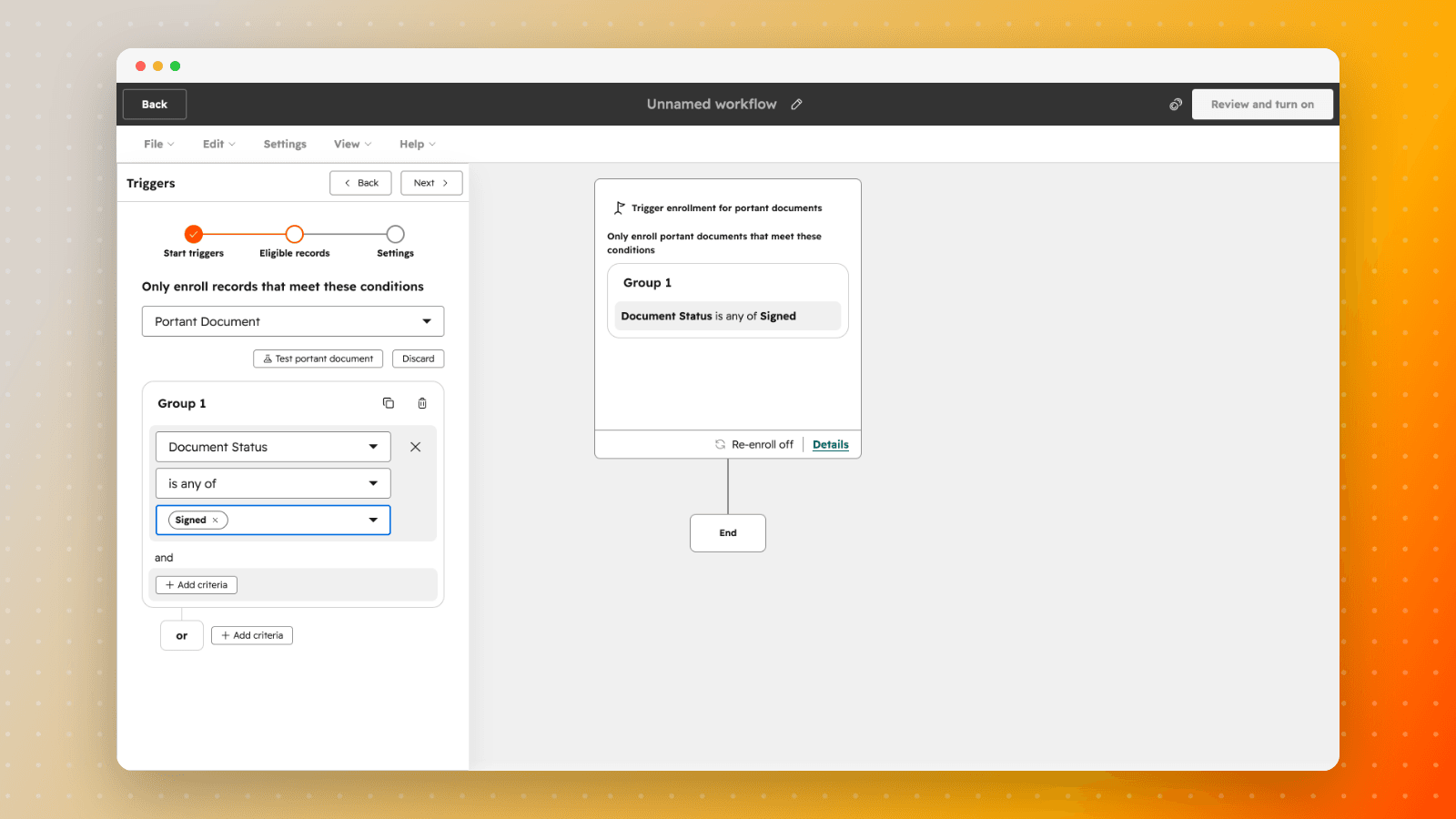
Run the workflow on the Document object when you need per-document granularity: this quote, its status, its view count, when it was sent. That's most of the plays above. A document-side workflow enrols Portant Document records and branches on Document Status, so the contract-signed play above is a single enrolment condition:
Run it on the deal when the rule depends on deal fields such as amount, pipeline or stage, and use the Portant document status property on the deal as the trigger. "Notify the manager when a quote over 50,000 goes out" is a deal-side rule, because the Document record carries the document's status and links but not its monetary value.
If you want the document's own value to be reportable, capture it back to a property with HubSpot capture fields, or keep the amount on the deal and let the association carry it.
Contract renewals and expiry
Renewals are the highest-value thing on this page and they need one field the Document record doesn't have: an end date. Records carry when a document was created, not when the agreement lapses. Two ways to get one:
- Derive it. If a document type has a standard term, set a renewal date from the created date plus that term with a HubSpot workflow or a calculated property, then run renewal tasks off it.
- Capture it. If the term is negotiated per deal, have the signer fill it in and write it back with HubSpot capture fields.
Don't confuse this with signature link expiry, which controls how long an unsigned signing link stays active. That's about getting the document signed; this is about the agreement's own term once it has been.
With that date in place you get a renewal pipeline out of documents you already generated: contracts expiring in the next 90 days, auto-renew agreements approaching their notice window, and customers whose only signed agreement lapsed months ago.
This is also what makes the object a workable lightweight contract lifecycle setup. Every agreement is a record with a status, a signed PDF, a signing history and a renewal date, all searchable in the CRM your team already uses, without a separate CLM tool. It won't do clause libraries or redlining, but for knowing what you've signed, with whom, and what's coming up for renewal, it's enough.
One more use worth naming: because each record keeps its own timestamps, links and signing history, you have an audit trail per agreement. That's what you want when procurement asks for the signed copy, or when a customer disputes which version they agreed to.
Reference: what's on each record
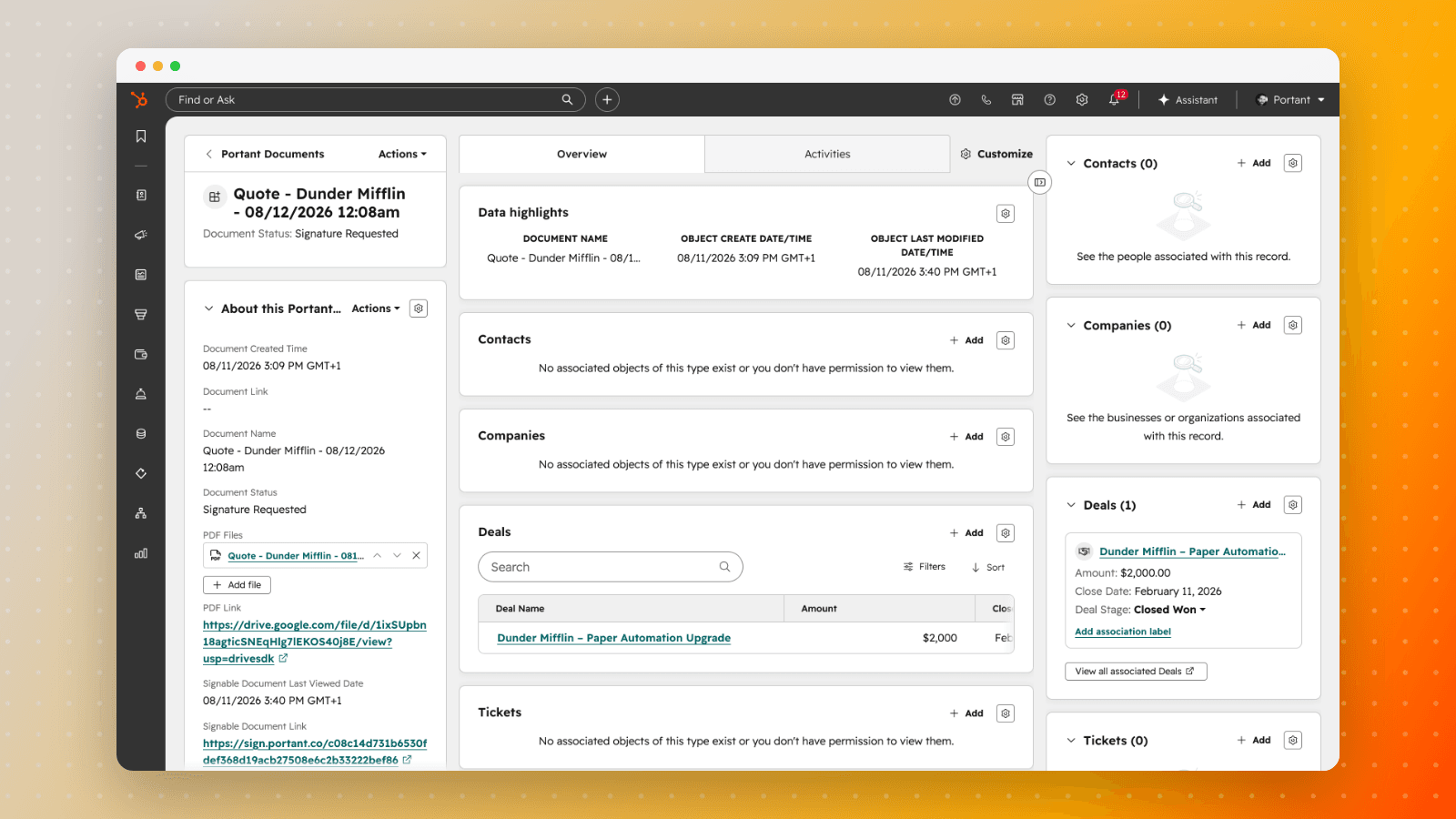
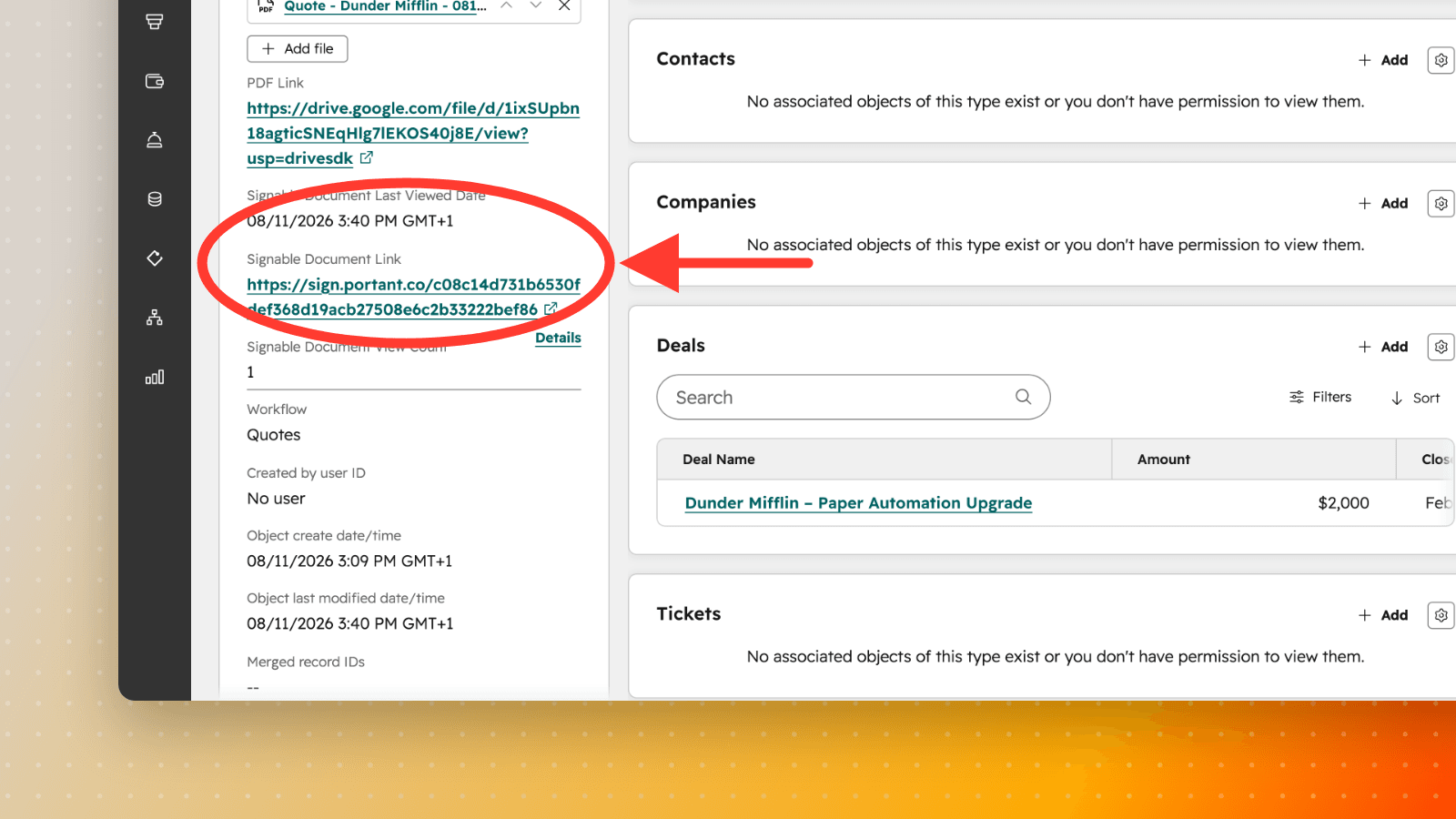
Each document opens as its own record, with the Portant properties in the left panel and the source record under Deals.
The property label is what you'll pick from in report builders and workflow
filters, and it's what appears on the record. The internal name is the same
property as HubSpot's API, exports and integrations refer to it. They differ, so
both are listed here: the signing fields in particular read as "Signable
Document" on screen and signature_request in the API.
| Property label | What it holds | Internal name |
|---|---|---|
| Document Name | Document name (defaults to "Portant Document") | a1323181_document_name |
| Workflow | The workflow that generated it, your document type | a1323181_workflow_name |
| Document Status | Document status | a1323181_document_status |
| Document Created Time | When the document was created | a1323181_document_created |
| Document Link | Link to the document (Google Docs or OneDrive) | a1323181_document_link |
| PDF Link | Link to the PDF | a1323181_pdf_link |
| PDF Files | The generated PDF, attached as a file | a1323181_pdf_files |
| Signable Document Link | Link to the signature request | a1323181_signature_request_link |
| Signable Document View Count | How many times the signer opened it | a1323181_signature_request_view_count |
| Signable Document Last Viewed Date | When the signer last opened it | a1323181_signature_request_last_view_date |
Scrolling the property panel shows the signing fields and the workflow that produced the document.
Status values, the same set used by the Portant Document Status property on deals and contacts: Pending, Error, Draft, Approved, Signature Requested, Partially Signed, Signed, Sent and Completed.
There's no document type, amount or expiry property. Type comes from the workflow name, and amount and expiry come from the deal or from captured fields, as described above.
When records are created and updated
A record is created the first time a document output is produced, then updated in place as the document moves through the run. One document is one record for its whole life, so counting records means counting documents.
Status follows the work: a draft awaiting review becomes Draft, then Approved, then Signature Requested, then Partially Signed or Signed as signers act, and Sent once the email goes out. A workflow with no review or signing step lands on Completed.
A workflow that generates several outputs in one run creates one record per output, each associated with the same source record.
Requirements and limits
- The Portant app must be installed in your HubSpot portal, with the document-object permissions granted when HubSpot is connected. See Install the Portant app in HubSpot.
- Records are created as documents are generated, so documents generated before Document records were available won't appear. There's no backfill, which means your reports build up history from the point you start rather than reaching backwards.
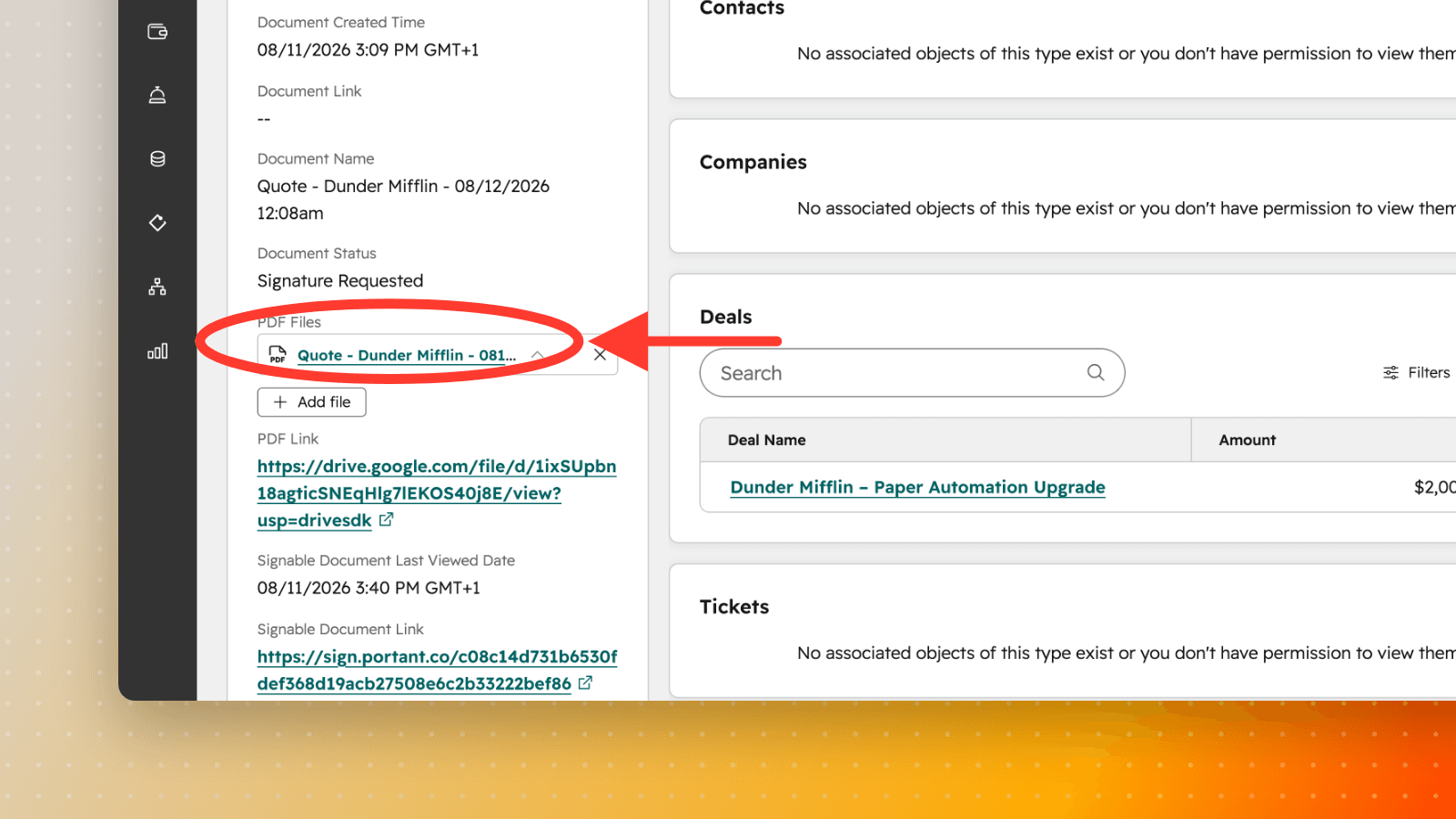
- The PDF is attached to the record only when the workflow is set to upload files to HubSpot. Attachments on the source record are covered in View created documents in HubSpot. When it is attached, it sits on the record as a file:
- Which custom reporting and dashboard features are available depends on your HubSpot subscription.
If records aren't appearing
The permissions that let Portant write Document records are granted when you connect HubSpot, so a connection authorised before this feature existed may not carry them. Reconnecting re-runs the HubSpot permission prompt: follow Reconnect HubSpot, then generate one new document and check the source record's associations.
If documents still generate normally but no Document record appears, copy a support code and open a support ticket with your HubSpot portal ID so we can check the connection from our side.