Change the output folder
Pick where new outputs are saved. You can choose any folder in your Google Drive, including folders inside shared drives, so the right people see the files as soon as they're generated.
Change the folder
If you haven't built a workflow yet, start with How to create your first workflow, then come back here.
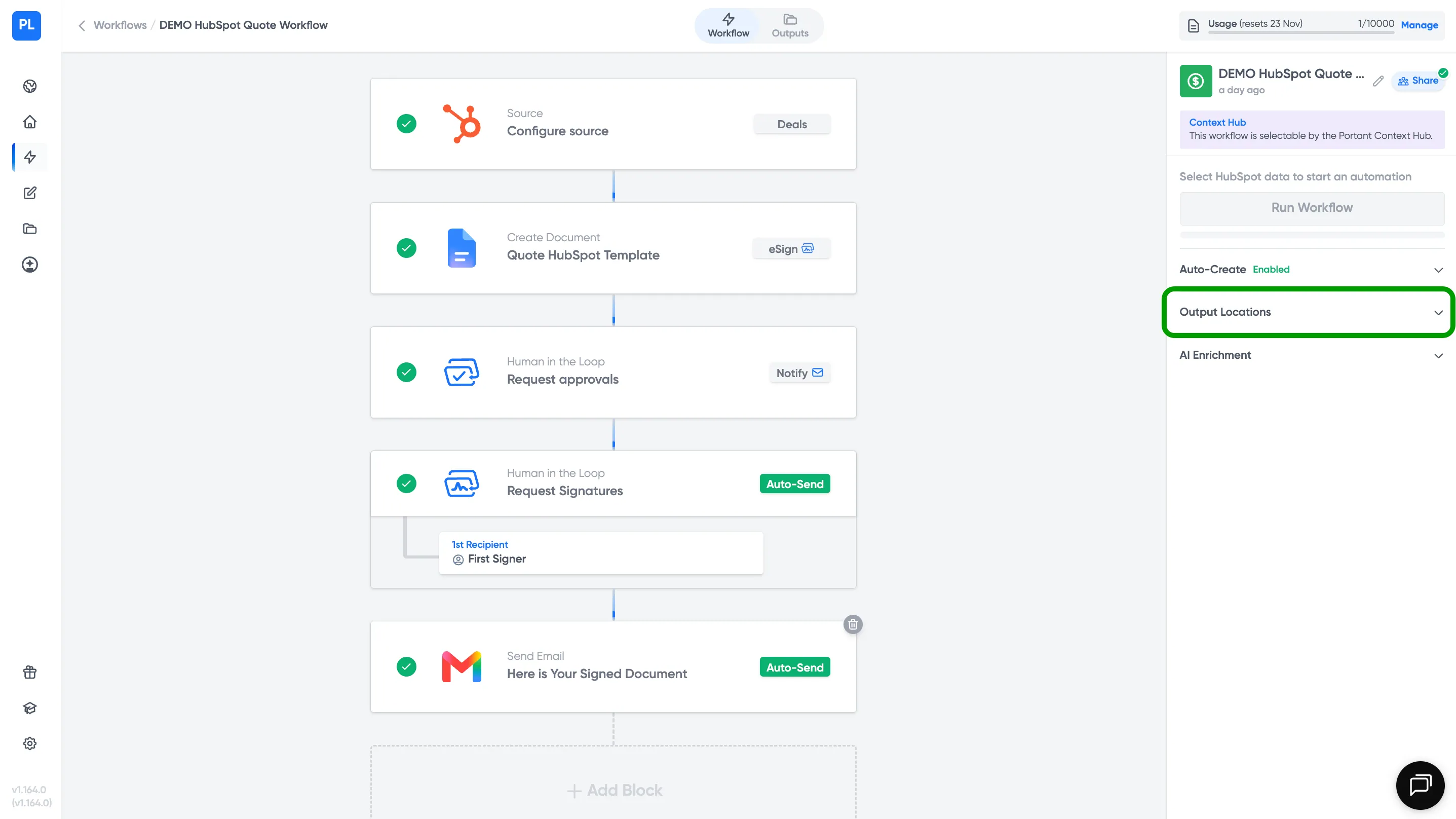
Open your workflow, locate Output Locations and click on the dropdown button.
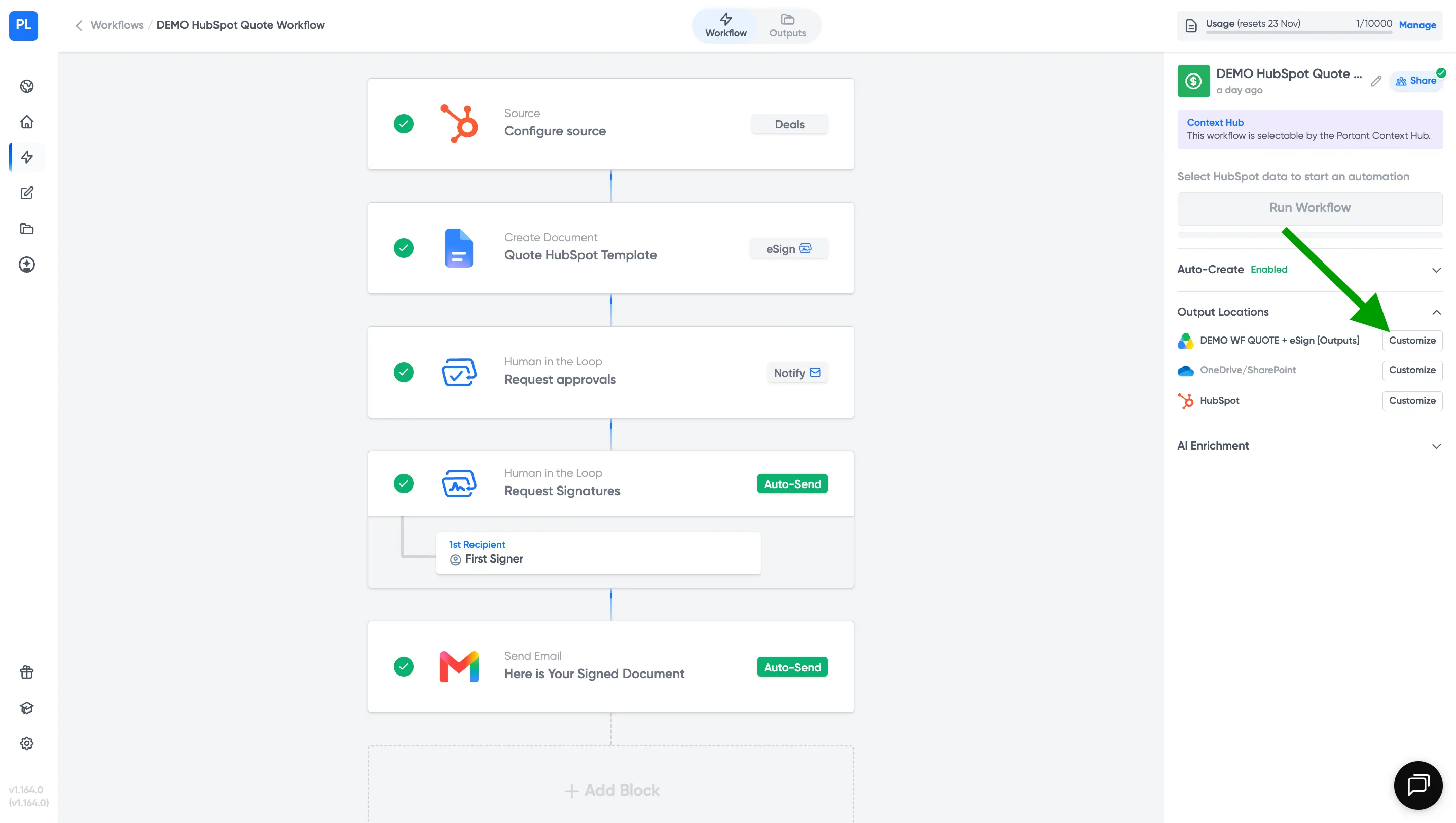
Click Customize.
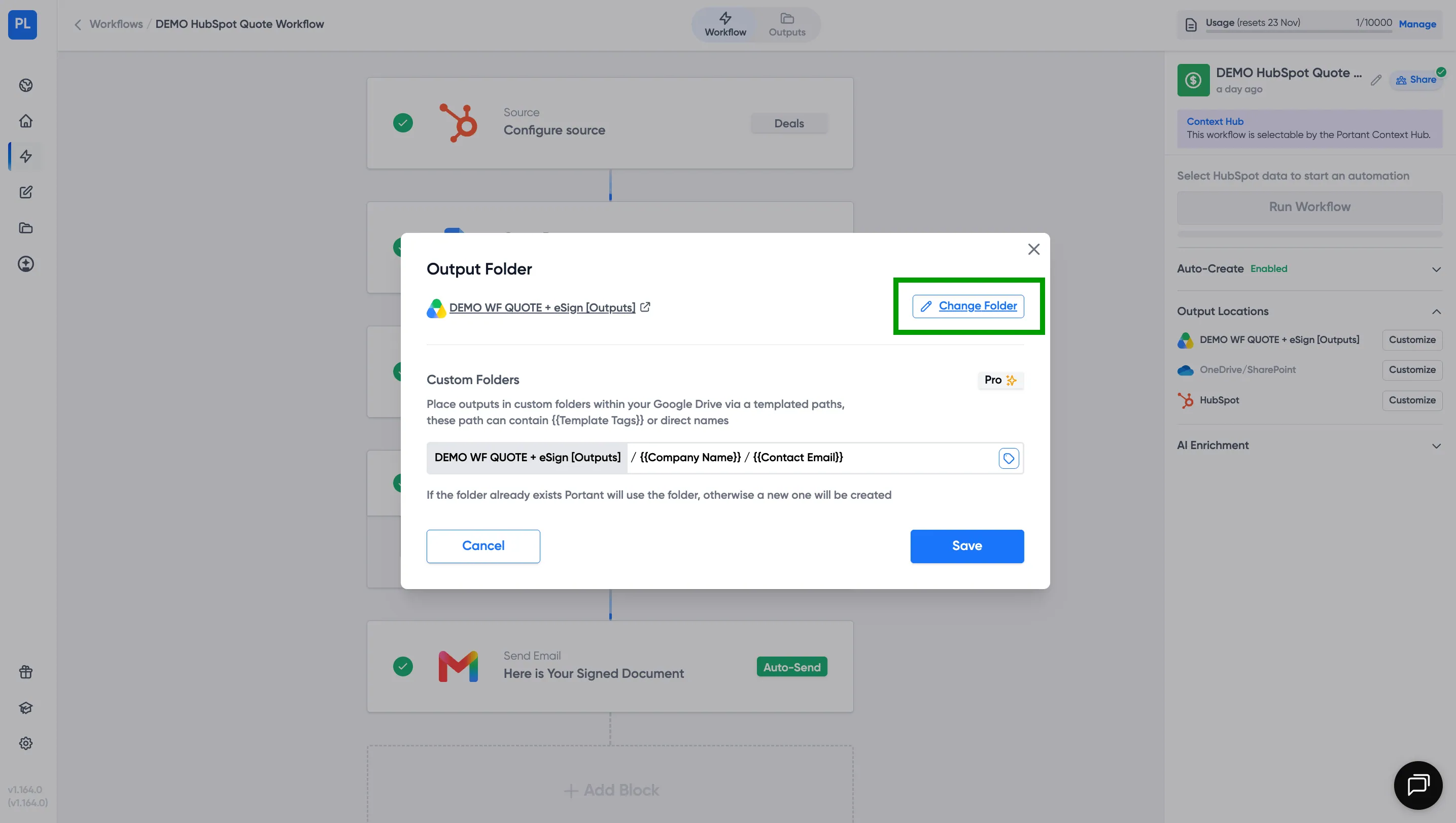
Click Change Folder to pick the location for your outputs.
Select the folder you want.
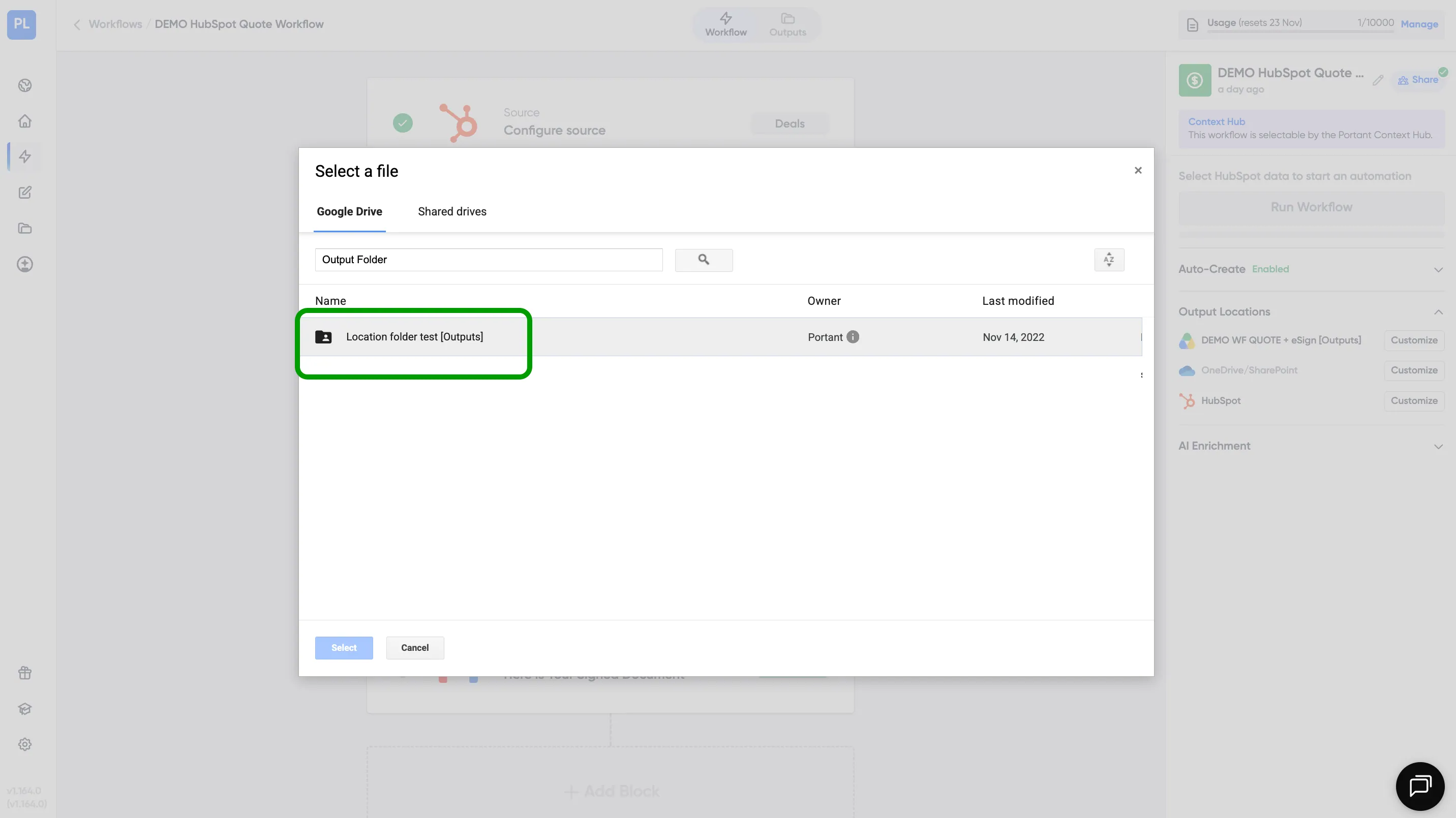
Note: This can be a folder in a shared drive, so your team has access automatically.
From now on, every output from this workflow is saved into that folder.
Related
- Auto-file output files to file outputs into subfolders based on values from your source.
- Customise output file names to control what each file is called inside the folder.