Reconnect your Google account
Portant works on files that live in your own Google Drive, so it holds a connection to your Google account. When that connection expires or is revoked, workflows fail in ways that rarely name Google as the cause.
Reconnecting takes about a minute and fixes most of them.
Symptoms
Reconnect Google if you are seeing any of these:
AUTH_ERRORwhen starting the Portant Data Merge add-on.- Authorization Failed or Authorization is required when opening the add-on or adding an email alias.
- A "no permission" error when connecting Gmail or Google Drive.
- Emails silently stop sending from a workflow that used to send them.
- Documents generate blank, or a workflow finishes with no output file.
- An email from Portant telling you your Google account is no longer connected.
Reconnect
- Go to Portant Settings → Integrations.
- Under Individual Permissions, find the service you need.
- Click Manage, then reconnect and accept the permission prompts.
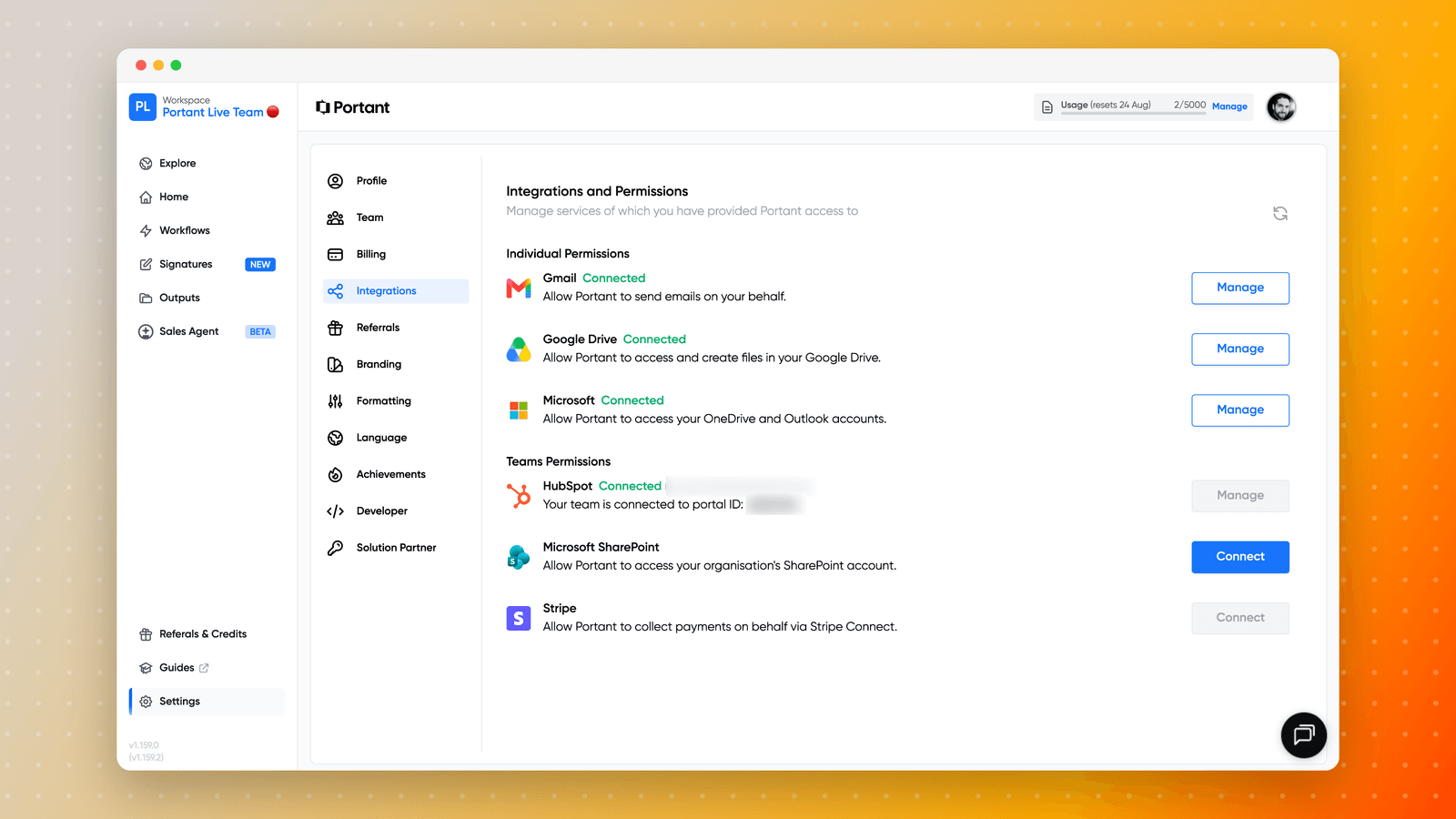
Google appears as two separate entries, Gmail and Google Drive, and they can expire independently. Make sure every service the workflow uses shows as Connected: a workflow that creates a document in Drive and then emails it needs both.
Changing your Google password does not refresh the stored connection. If you have just changed your password, sign in to Portant again and reconnect on the permissions page.
If reconnecting doesn't work
You are signed in to more than one Google account
This is the most common reason a reconnect appears to succeed but the error comes straight back. Google defaults add-ons and consent screens to whichever account it considers active, which may not be the account holding your Portant subscription.
Try, in order:
- Open Portant in an incognito or private window and sign in with the correct account only.
- Sign out of all Google accounts, then sign back in with the Portant account first.
- Use a separate browser profile for each Google account, so the correct one stays active.
If the add-on works in Google Docs but fails in Sheets or Slides, this is almost always the cause.
The file owner has changed, or someone has left
If the person who originally connected the account has left, or the files have moved owner, the stored connection can still point at the old account. Remove Portant's access from the old Google account, then reconnect from the account you want to use:
- Open the Google permissions page.
- Search for Portant.
- Choose Delete all connections that you have with Portant, then Confirm.
Your Google domain has changed
A company rebrand or Workspace migration changes your login address, which Portant treats as a different account. Your workflows stay with the original account, so ask us to move them: see Change your login email address.
Still stuck
Copy a support code from the failing item on the Outputs page and open a support ticket. The code lets us see exactly which credential failed.